How to upload your designs

How to upload your designs

To upload your design, follow the below steps:

  • Make sure you have saved your file as an InDesign Template (.indt file extension).
  • Sign in to your TemplateCloud account and go to ‘Create New Template’.
  • Give your design a title and to select the size and specification of your file (ie. is it single or double sided).
  • Set your royalty and choose whether you would like it to increase with each sale or stay at a fixed rate. We usually recommend a royalty based on the size of your file and how many Fotolia images you have used, be careful not to set your royalty too high as this could prevent it from selling very well.
  • Upload you file and build your template. You will be prompted to replace any missing fonts at this stage with fonts from the Linotype library (see this post for more information on fonts you can use in your designs).
  • Test your template and make sure it works as you expect for the end client before saving it to proceed to the next step.
  • Tag your template as appropriate using tags from the list to help end clients search for your design. Make sure you add at least one tag from the Industry Type tab or add a tag if none are suitable.
  • Choose a maximum of three colours based on the main colours used in your design. Again this is to help end users when searching for designs of a particular colour.
  • Read and accept our Terms and Conditions to submit your design for approval.

You can view all of your designs from your dashboard which will allow you to see when your design has been approved and uploaded for sale.

Watch the Video: How to upload your design to TemplateCloud for more information.
How to download template files to build your designs

How to download template files to build your designs

To make sure you get the size of your document correct with the correct bleed and colour settings, we recommend downloading one of our template files. You can view the list of the different sizes here .

In our template files you will find:

  • Our full colour chart ready for use (all colours must be Process CMYK, no spot colours, tints or gradients)
  • A list of Active Updates
  • A placeholder logo

    To see an onscreen demonstration of this process, watch the How to Download Template Files to Build Your Designs video.

  • How to use colour swatches in your designs

    How to use colour swatches in your designs

    To add a colour choice for the end user to use, add ‘s_â? to the colour name in the swatches panel.

    You need to make sure that all the font colours you use in your document are labelled this way so that they display properly in the editor. All colours you use must be Process CMYK, no spot colours, tints or gradients as these will not view or print correctly once they have been edited.

    To help you get your colours right, In our template files you will find our full colour chart ready for use with over 150 different swatches. You can download our templates here .

    To see an onscreen demonstration of this process, watch the How to Use Colour Swatches in Your Designs video.

    How to use Active Updates in your designs

    How to use Active Updates in your designs


    Using Active Updates in your designs means that your templates will be automatically pre-filled with an end-user’s contact details when they are editing your design. This helps to save them time and to better visualise how your design will work for them which could help to get you more design sales.

    • {{name}} First name & surname
    • {{job_title}} Position or job title
    • {{email}} Email address
    • {telephone}} Telephone number
    • {{fax}} Fax number
    • {{mobile}} Mobile number
    • {web_address}} Website
    • {{business_name}} Business name
    • {{address_1}} 1st line of address
    • {{address_2}} 2nd line of address
    • {{post_town}} 3rd line of address
    • {{county}} 4th line of address
    • {{postcode}} Postcode

    To use Active Updates, use the field names below in your document instead of ‘placeholder’ text so that the design automatically pre-fills with the user’s details when they open it in our editor. This list of Active Updates is also in all of our template files ready for you to use, download one of our templates here .

    To see an onscreen demonstration of using Active Updates, watch the How to Use Active Updates in Your Designs video.

    How to use text in your designs

    How to use text in your designs

    Non-editable text

    On the -Background layer you can use any font you like, just ensure all fixed text is on the lowest -Background layer and converted to outlines.

    Editable text

    A special ‘server’ font license is required for editing templates. We’ve bought this license for over 1,000 fonts from Linotype which you will need to use for editable areas. You can view or download a full list of this library here.

    If you don’t have the exact font on your system you can choose a font with the same name. You will then be prompted to replace it with the Linotype version when building your template via TemplateCloud. For example, use any Frutiger Roman you already have and substitute it with Frutiger LT Pro 55 Roman from the Linotype Originals Library when uploading.

    We can only substitute a font if there is an equivalent in the Linotype Originals 2.0 Library. So don’t use a font like Meta – find something similar from the library.

    All editable fonts need to be set as a paragraph style in InDesign and named with their font name so they are identifiable. This includes any non-Linotype fonts you intend to replace at the upload stage.

    Editable text cannot use special effects and requires certain settings to be applied in InDesign. Read through the list below carefully to make sure you respect all of the editable text requirements:

    • Don’t outline text (don’t convert it to paths).
    • Don’t use ‘Adobe Paragraph Composer’ justification – set to ‘Adobe Single Line Composer’ instead.
    • Don’t use ‘optical’ kerning (use ‘metrics’ instead).
    • Don’t use tracking (tracking should be set to ’0′).
    • Don’t scale, skew, compress, squash or expand.
    • Don’t use any special character effects such as all caps, small caps, superscript,subscript, underline, baseline shift, strike through, ‘forced’ bold, ‘forced’ italic or outlined.
    • Don’t use paragraph hyphenation.
    • Don’t use soft returns.
    • You can’t use text attached to paths.
    • Multi-column or linked (threaded) text frames aren’t allowed.
    • Tables, bullets and tabs aren’t supported.
    • Don’t use inset spacing (padding).
    • Avoid Text Wrap.
    • Don’t rotate text within a text frame (although its fine to rotate the whole text frame).
    • Don’t use non-rectangular text frames.
    • Don’t use tint swatches or gradients swatches.

    Setting your text frame

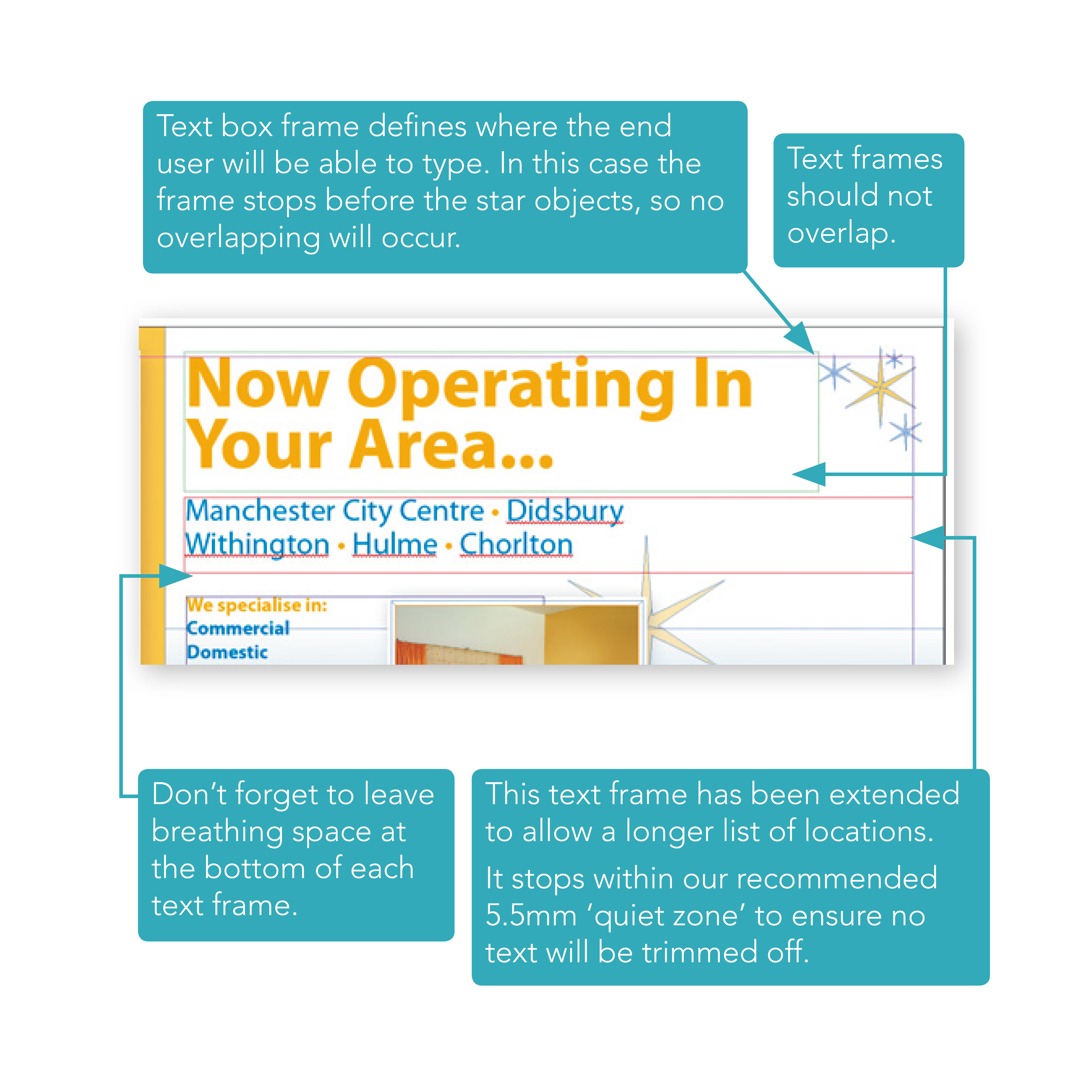
    Define your text frame so the user has as much room as they need to fit in the text they want to type (see the example in the below image). Be sure to set the end of the text box carefully so it doesn’t run over important design elements or run off the edge of the page.

    Avoid overlapping editable text frames or images as it makes it difficult for the user to pick items to edit. All text boxes should be rectangular.

    Set some breathing space

    Expand the bottom of your text frame by around 25% of the height of the font. This ‘breathing space’ allows the editor to display descending characters.

    To see an onscreen demonstration of this process, watch the How to Use Text in Your Templates video.

    How to use logos in your designs

    How to use logos in your designs

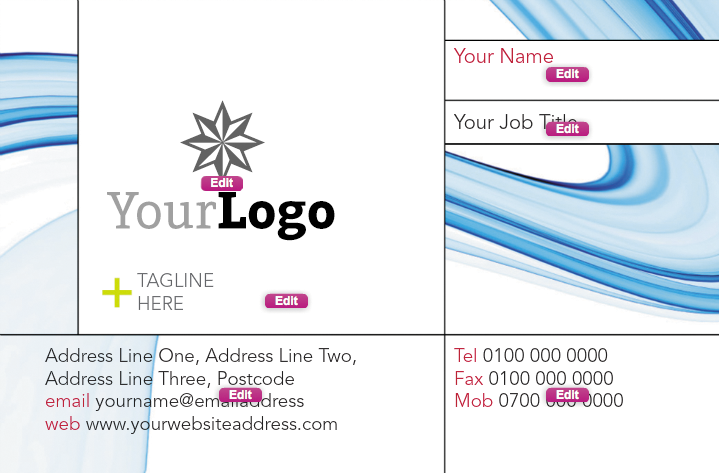
    Some businesses will already have a logo, some won’t.Placeholder logos are embedded in all of our starter templates.

    Position this samplelogo.jpg on your document on its own layer, at a suitable size wherever the client’s logo will be placed on your design (see below left image). Make sure you embed the samplelogo.jpg in your InDesign file as you would with any other images, see this post for more instructions.

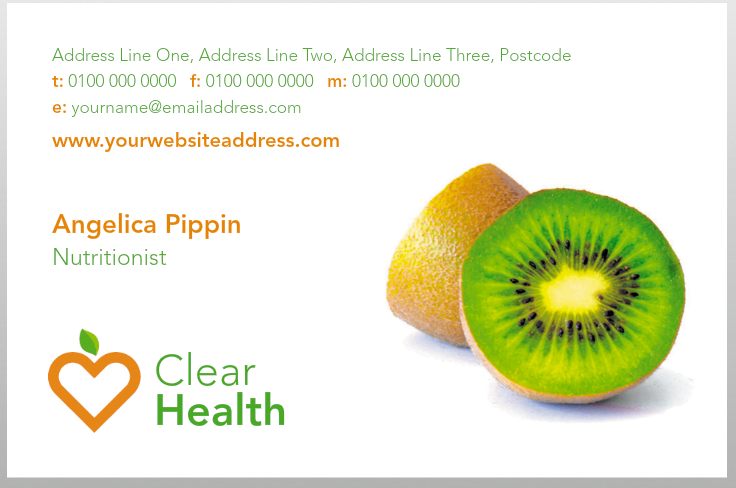
    Instant logos consist of a graphical device together with some styled text, so that it looks like a logo (see below right image).

    The user simply changes their business name and they’ve got an ‘Instant Logo’.

    To see an onscreen demonstration of how to put placeholder logos in your design, watch the How to Use Logos in Your Designs video video.

    How to make editable layers in your designs

    How to make editable layers in your designs

    Our template technology uses the layer information from InDesign to figure out how your template should work. The way you name your layer – and what you put on it – tells our software how it should behave and which rules to apply.

    How to make things fixed

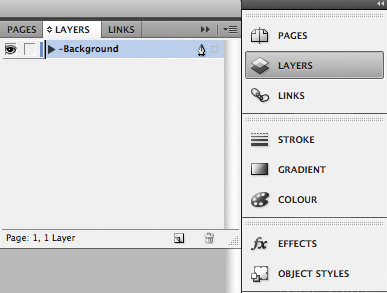
    The background layer is home to all the fixed, non-editable objects in your document. Most InDesign features and effects are supported on the background layer except for Text Wrap. Make sure all text, graphic and image elements which will not be editable are on ONE background layer.

    To turn an existing layer into the background layer just add a hyphen prefix ‘-â? to the layer name (e.g. ‘Background, see right image below).

    The ‘Background layer should be the lowest stacking layer within the ‘Layers’ palette, so that objects on the ‘Background layer do not obstruct any editable objects.

    How to make things editable

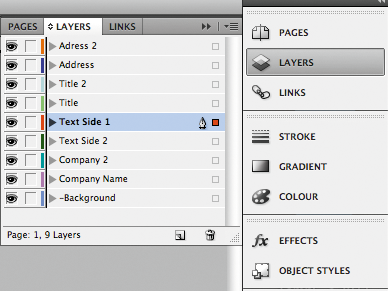
    Each editable object needs to be on its own layer. To quickly move an object to its own layer, simply create a new layer for each one, then drag each object onto a separate layer, using the coloured indicators in the ‘Layers’ palette (see left image below).

    To see an onscreen demonstration, watch the How to Make Editable Layers in Your Designs video.

    How to use Copyfit

    How to use Copyfit

    Using ‘copyfit’ in your designs means that as the end user types it automatically shrinks the text (and leading) to fit the space available. Use this wisely. Don’t just put copyfit on everything. Thing about where it is likely the end user may need to type more and add copyfit to this layer.

    To do so, simply add ‘c_â? to the start of the layer name, for instance ‘c_Nameâ? (see left image below). If you don’t set the layer as copyfit, we’ll just tell the user they’ve typed too much and ask them to type less (see right image below).

    IMPORTANT – Do not use more than one font type or style when using copyfit.

    For an onscreen demonstration of this process, watch the How to Use Copyfit in Your Designs video.

    Celebrate our next milestone and win £100

    10,000th design – Fast approaching

    The TemplateCloud library is rapidly growing and we are fast approaching our 10,000th design upload! We want to celebrate this next landmark with you by giving £100 to the designer who uploads the ten thousandth design.

    We anticipate that we will reach the 10,000 mark over the coming days so make sure that you have uploaded all of your designs to your account by the weekend to be in with a chance of winning. To increase your chances, why not spend some time putting together new designs? Download some of our ready made Design Briefs to get you started and keep your eye on the blog for announcements of which lucky designer gets the £100 cash prize – it could be you!

    Happy Designing!

    New Design Briefs

    Need some inspiration?

    Design briefsWe’ve compiled our latest design briefs to help get you started with your TemplateCloud designs. These include client request and current gaps in the TemplateCloud design library, download them in PDF format here.

    Don’t forget that we’re still offering £5 in Advance Royalties for every design you upload, read more about this on the blog.

    You can also be in with a chance of winning an extra £100 with designs you upload over the next week! We are approaching our 10,000th TemplateCloud design and we’re offering £100 to the lucky Clouder whose design marks the 10,000 milestone, read more here and keep your eyes on the blog for announcements of the lucky winner.